How to Fix a LionChief Remote That Won't Control Your Train: Complete 2026 Troubleshooting Guide
November 26, 2026
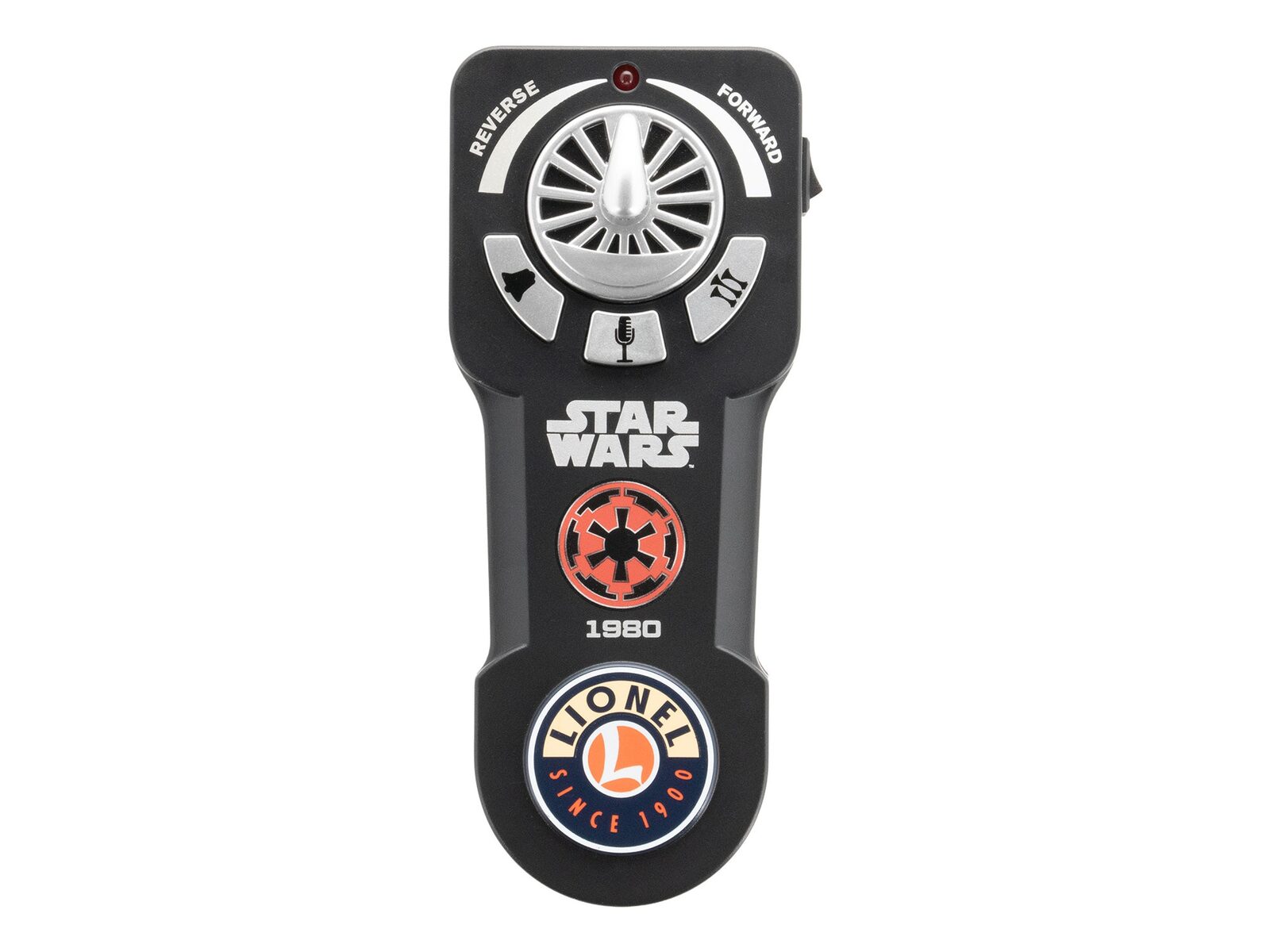
The train set is out of the box, the track is together, and the locomotive just sits there no matter what you do with the remote. LionChief remotes are simple, so when one will not control its train, the cause is almost always one of a handful of things: batteries, the wrong remote, track power, the app or pairing. This guide walks through each fix in order, using the steps in Lionel's own LionChief manuals.
How LionChief remotes work: the remote that comes with a LionChief set is a matched pair with its locomotive. Lionel's manuals say it will not communicate with other locomotives, and you can run several LionChief engines on the same track as long as each one uses its own remote. The separate LionChief Universal Remote is different: you pair it to up to three engines yourself.
1. Check the Batteries and the Power Switch
Weak batteries are the most common cause, especially in a remote that has been sitting in a box.
- The remote takes three AAA batteries. Lionel's manual says to use only new alkaline batteries and never to mix new and used batteries or different types.
- Make sure the on/off switch on the side of the remote is on.
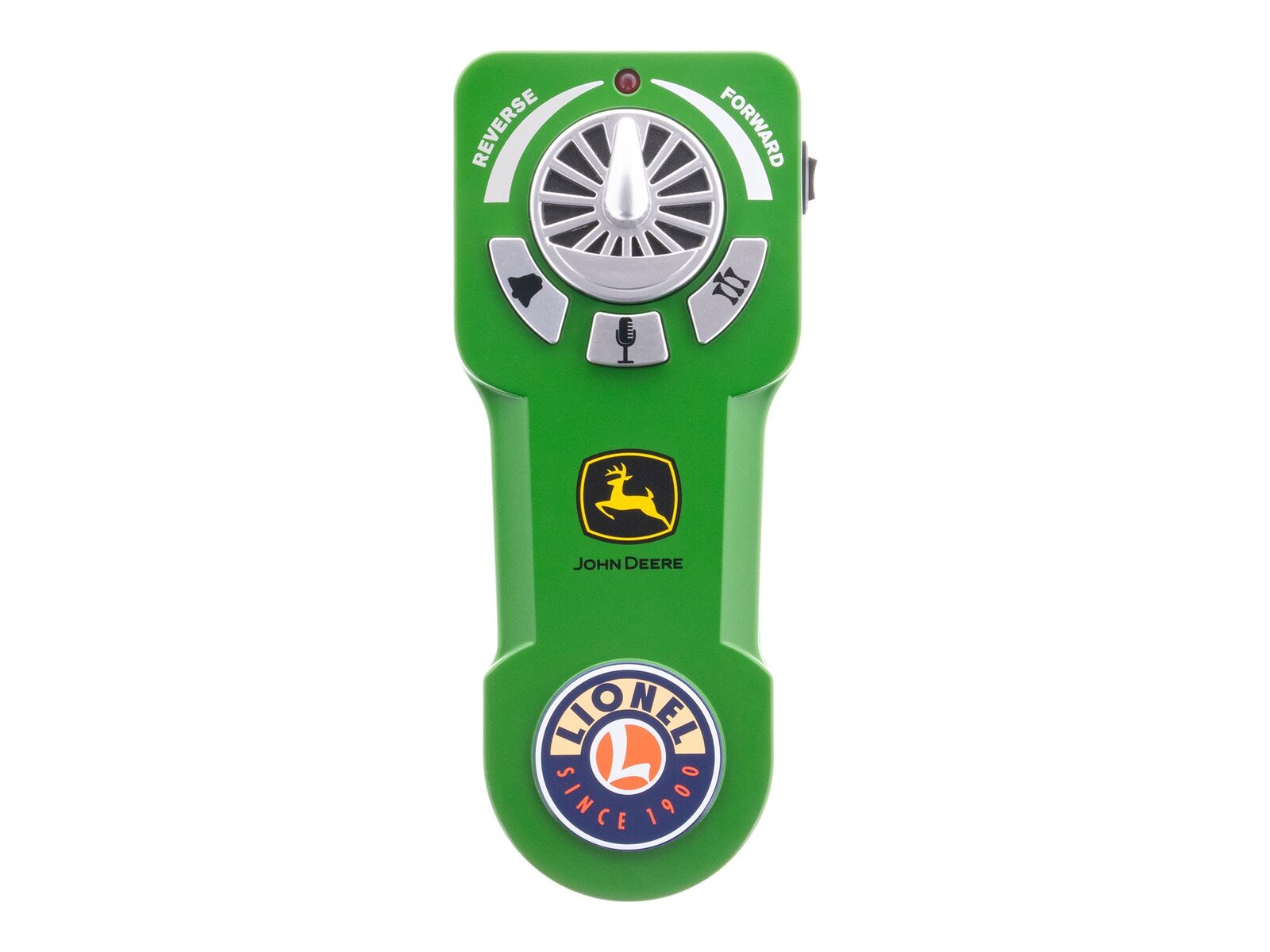
- Watch the red light. On a set's LionChief remote, Lionel says the red light stays on during normal operation and flashes when the locomotive moves, faster at higher speed. On the Universal Remote, if the light does not come on when you switch it on, replace the batteries.
- Turn the remote off when you are done to save the batteries, and take them out if the train will be put away for a long time. Lionel notes that damage from leaking batteries is not covered by the warranty.
2. Make Sure It Is the Right Remote
If you have more than one LionChief set, it is easy to grab the wrong remote. Lionel's troubleshooting advice is to match the road name and number on the remote to the locomotive. A set remote will not run a different set's engine. To run several engines from one controller, use the Universal Remote (step 5).
3. Check Track Power
The remote talks to the locomotive by radio, but the locomotive still needs power from the track to listen.
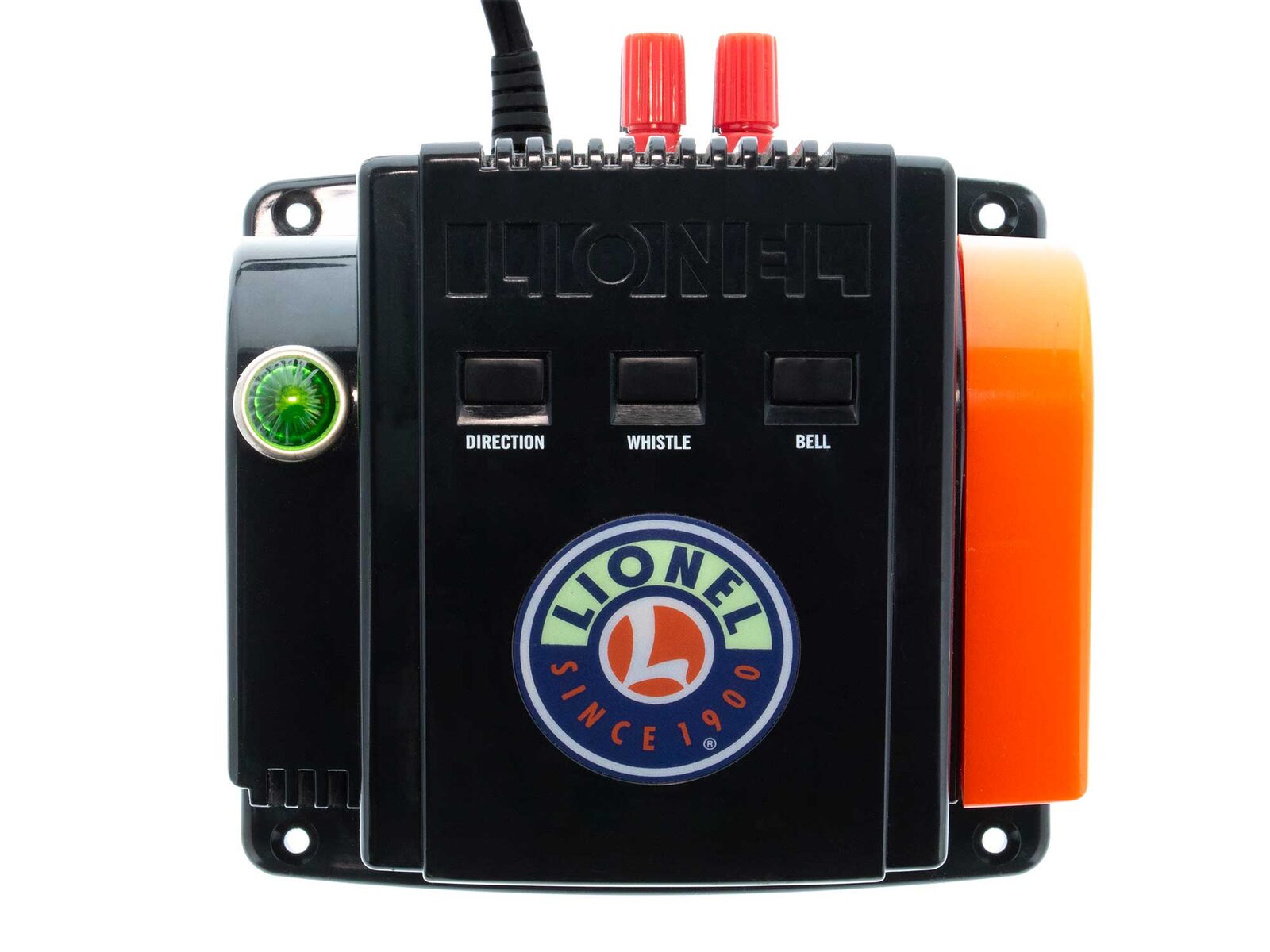
- Wall pack: plug it in and make sure the plug on the terminal section is seated. If the headlight and sounds do not come on, the engine has no power.
- AC transformer: Lionel says to set the train voltage to full, 18 volts, and control the train with the remote. The locomotive ignores the transformer's throttle, direction, horn and bell buttons, so turning the transformer throttle does nothing useful.
- One power source only: Lionel's manuals say to use either the wall pack or a transformer, never both at once.
- Power cutting out: if the engine responds and then stops in certain spots, the problem is track power, not the remote. See our guides to trains that stall on switches and dead spots and trains that keep shorting out.
4. Unlink the App
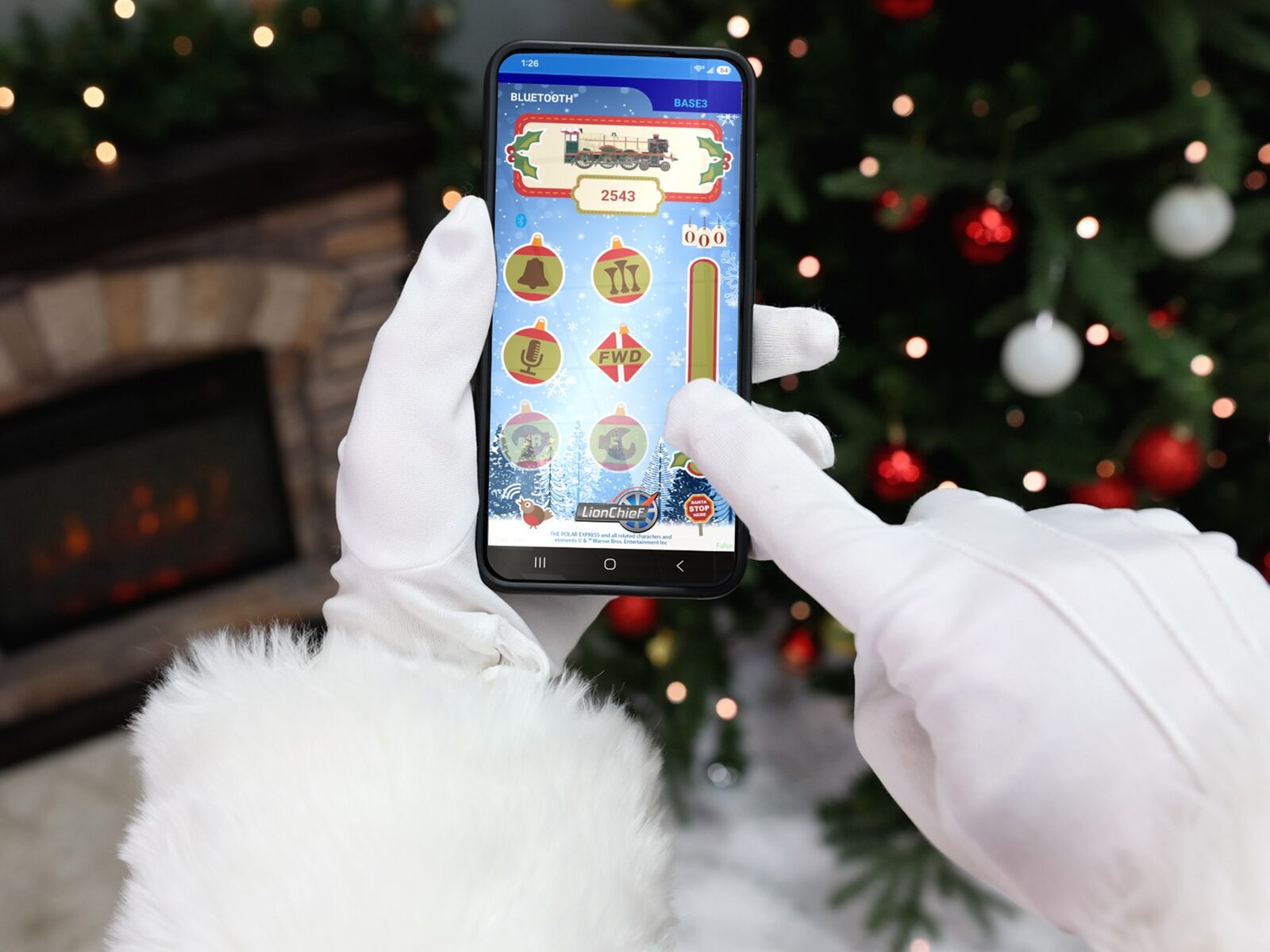
On Bluetooth LionChief engines, the app and the remote can get in each other's way. Lionel's manual says to un-link the engine in the app before using the LionChief remote again. If you or a family member connected to the train with Lionel's Cab3 app, open the app and un-link the locomotive, or close the app and turn the phone's Bluetooth off, then try the remote.
- Some newer sets have a switch on the locomotive for Bluetooth mode and Continuous Run Mode, which runs the train on its own at a fixed speed. Check that it is set the way you expect.
- Prefer the app? Our LionChief Bluetooth setup guide covers connecting, and our Cab3 app vs LionChief remote comparison explains what each can do.
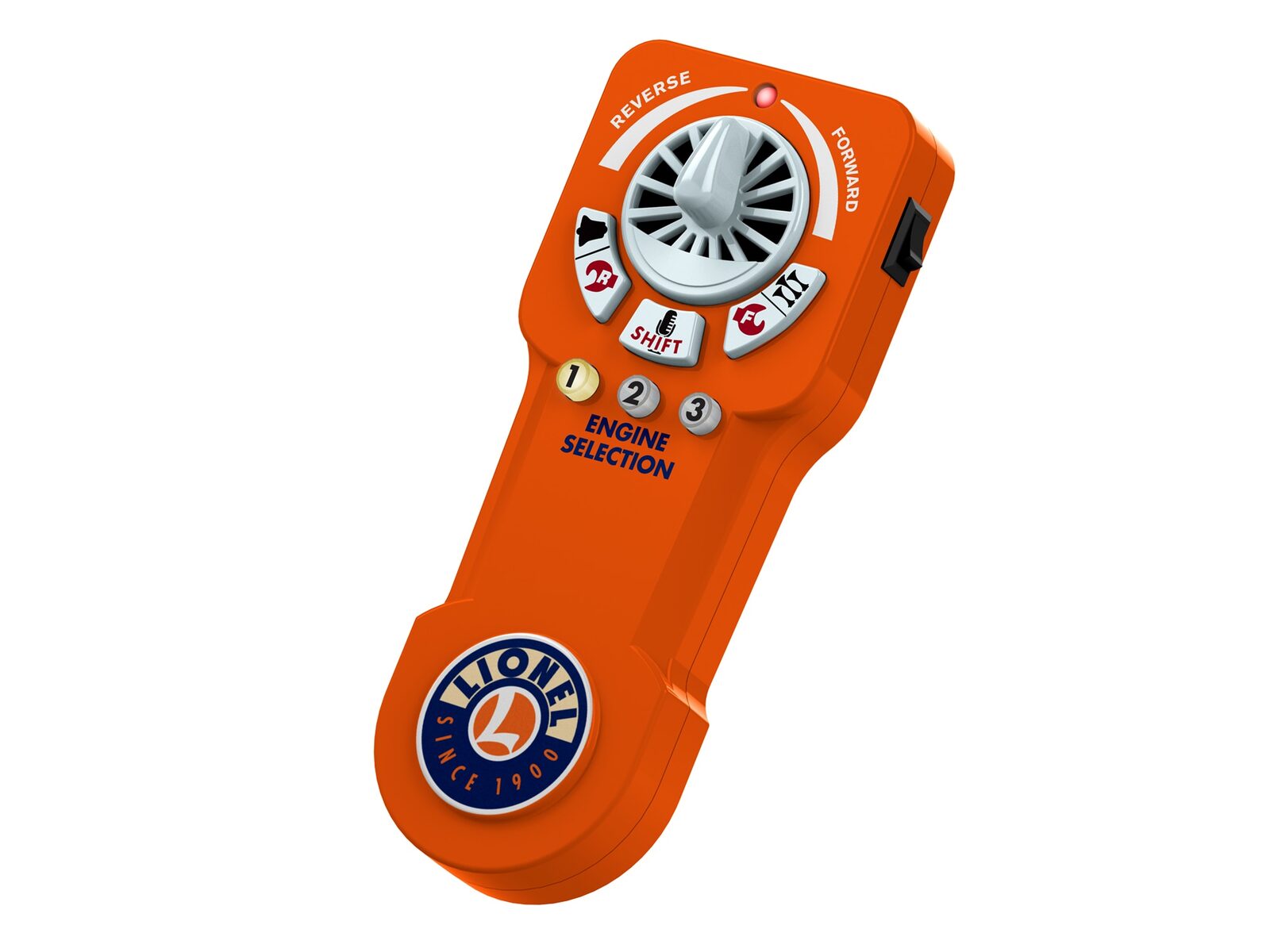
5. Pair the Universal Remote Correctly
The LionChief Universal Remote has to be paired to each engine. Lionel's steps for Engine Selection button 1:
- Turn the Universal Remote on.
- Press and hold Engine Selection button 1 until it blinks rapidly. This clears any old pairing on that button.
- Release it. It should flash slowly, meaning it is not connected yet.
- Put the locomotive on the track and turn on track power.
- Tap and release Engine Selection button 1.
- The button stops flashing and stays lit. If the locomotive was beeping or chirping, it starts its background sounds.
- Run the locomotive. The pairing is saved, so next time just power up and tap the button.
Use buttons 2 and 3 the same way for a second and third engine. If pairing will not work:
- Turn off the set's own remote. Lionel says the engine must be available, so the basic remote that came with it has to be off.
- Only one Universal Remote per engine. A locomotive already paired to another Universal Remote will not pair to a second one.
- Disconnect the app, since an engine controlled by the app is not available either.
- Check compatibility. Lionel says the Universal Remote works with most LionChief and LionChief Plus engines released through 2016 and all released in 2017 and later.
- If the remote behaves oddly, Lionel suggests re-running its firmware update with the LionChief U Remote Updater app.
6. Reset the Sound Settings
If the train responds but the sounds are at the wrong levels after someone used the app, Lionel's LionChief manuals describe a reset with the set's own remote: with the locomotive powered and the remote on, hold down the horn, announcement and bell buttons, turn the remote off and back on, then release the buttons. Lionel notes this reset only works from the dedicated remote that came with the set, not from the app or the Universal Remote. For other sound problems, see our Lionel sound troubleshooting guide.
7. When to Call Lionel
If you have fresh alkaline batteries, the matched remote switched on, track power on, the app un-linked and the engine still will not move, Lionel's advice is to take it to a Factory Trained Authorized Lionel Service Station or contact Lionel Customer Service. For a brand-new set, contact the store where you bought it or Lionel before opening anything up.
Quick Checklist
- Install three new alkaline AAA batteries and switch the remote on.
- Watch for the red light on the remote.
- Match the remote's road name and number to the locomotive.
- Confirm track power: wall pack plugged in, or transformer at full 18 volts, never both.
- Un-link the locomotive in the Cab3 app or turn off the phone's Bluetooth.
- For the Universal Remote, clear and re-pair the Engine Selection button with the set remote turned off.
- Reset the sound settings from the set remote if the sounds are off after app use.
- Contact an authorized Lionel service station or Lionel Customer Service if nothing works.
Setting up a new set this holiday season? Our beginner's setup guide covers the first run from box to track.
Frequently Asked Questions
Why won't my LionChief remote control my train?
The most common causes are weak or mixed batteries, the remote switched off, the wrong remote for that locomotive, no track power, or the engine still linked to the Lionel app. Lionel says to un-link the engine in the app before using the remote.
Do I need to pair a LionChief set remote?
No. Lionel says the remote that comes with a LionChief set is a matched pair with its locomotive. The separate Universal Remote must be paired to each engine.
How do I pair the LionChief Universal Remote?
Turn it on, hold Engine Selection button 1 until it blinks rapidly, release it, power the locomotive on the track, then tap button 1. It stops flashing when it connects. Make sure the set's own remote is off.
Can I run a LionChief train with a regular transformer?
Yes. Lionel says to set the transformer to full, 18 volts, and use the remote to control the train. The locomotive ignores the transformer's throttle and buttons. Do not use a wall pack and a transformer at the same time.
What batteries does a LionChief remote use?
Three AAA batteries. Lionel says to use only new alkaline batteries and never to mix old and new or different types.
Newsletter
Weekly O-gauge tips & reviews
New reviews, layout ideas, and hobby news, straight to your inbox.