Lionel LionChief Bluetooth Setup Guide: Troubleshooting and Tips
May 18, 2026
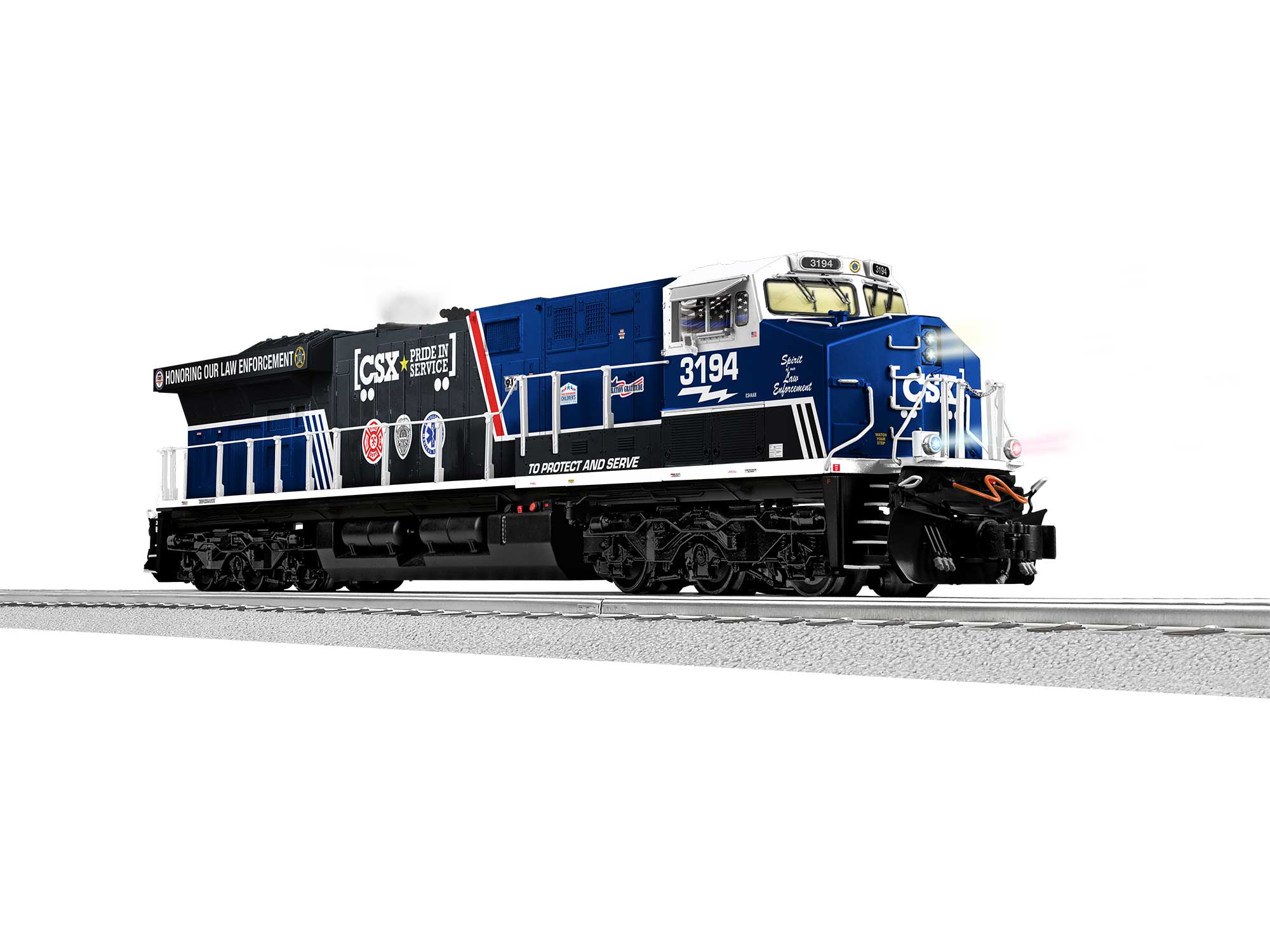
Most of what you'll find on this topic online is rewritten manufacturer copy. This isn't. It's what I've learned running trains on a real basement layout.
Lionel's LionChief Bluetooth control system is the single best thing to happen to entry-level O-gauge model railroading in years. A free smartphone app, no remote control to lose, and full speed/direction/sound control of your locomotive from anywhere within range. But for new vibe trains hobbyists, the first pairing can be frustrating — and once you know the quirks, you'll never have a problem again. This vibetrains.com guide walks you through complete LionChief Bluetooth setup, common problems, and tips for getting the most from the system.
What You Need to Get Started
You need three things: a Lionel LionChief or LionChief Plus 2.0 locomotive, a smartphone with Bluetooth (iOS or Android), and the free LionChief app from the Apple App Store or Google Play. The locomotive must be on a powered loop of track — Bluetooth is the control channel, but the locomotive draws power from the rails just like any other O-gauge engine. Any compatible transformer in the 18-volt AC range will work; the included transformer in a LionChief starter set is sized correctly. If you're new to O-gauge entirely, start with our 2026 starter set guide for a complete out-of-the-box ready-to-run package.
Step-by-Step Pairing
Setting up LionChief Bluetooth is straightforward once you know the sequence. Place the locomotive on powered track. Open the LionChief app on your phone. Tap "Connect" or the Bluetooth icon. The app will scan for nearby LionChief locomotives — yours should appear within 10 to 15 seconds. Tap your locomotive's name to pair. Once connected, the app's control panel becomes active: throttle, direction, bell, whistle, and additional sound buttons. The whole process should take under a minute. If it takes longer, you've hit one of the common problems below.
Problem: Locomotive Doesn't Appear in the App
The most common issue. Three causes: track power isn't reaching the locomotive, Bluetooth is disabled on your phone, or the locomotive's Bluetooth radio is in a stuck state. Fix in order: verify track power by touching the locomotive — does the headlight come on, do the wheels turn with throttle from a wired controller? If yes, power is fine. Next, toggle Bluetooth off and on in your phone settings. Then, lift the locomotive off the track for 10 seconds, place it back, and re-scan in the app. This power-cycle clears any stuck pairing state. If the locomotive still doesn't appear, force-quit the LionChief app and reopen it.
Problem: Connection Drops Mid-Session
If your locomotive pairs successfully but loses connection during operation, the cause is almost always Bluetooth interference. Common sources: a wifi router very close to the layout, microwave ovens running nearby, Bluetooth headphones connected to the same phone, or another Bluetooth device in pairing mode. Move the phone closer to the locomotive (within 10 feet is ideal), disable other Bluetooth connections on your phone, and try again. The LionChief Bluetooth range is rated to about 30 feet line-of-sight, but interference can cut that significantly. Layouts in basements with concrete walls often have better Bluetooth performance than rooms with lots of electronics.
Problem: Multiple LionChief Locomotives Appear in the App
If you own more than one LionChief locomotive and they're all on powered track, they'll all appear in the app's discovery list. The app can control one locomotive at a time on most LionChief generations; Plus 2.0 supports two simultaneous connections from a single phone if your device supports dual Bluetooth profiles. To control a second locomotive, disconnect from the first in the app, then connect to the second. Some hobbyists run two phones in parallel — one per locomotive — for fully independent two-train operation. This works flawlessly.
Problem: App Updates Caused Connection Issues
Occasionally a LionChief app update introduces a regression where previously-paired locomotives won't reconnect. The fix: in the app, go to settings, "forget" the locomotive, then re-pair it from scratch. This re-handshakes the Bluetooth identifier and resolves most update-related issues. If problems persist after app updates, check the Lionel support forums and the LionChief subreddit — issues are usually identified within days and Lionel typically releases a patch update within a couple of weeks.
Tips for Getting the Most from LionChief Bluetooth
A few tricks that veteran LionChief users rely on. First, the in-app throttle goes from zero to full in 100 steps; for realistic slow speeds, drag the throttle just one to three steps and the locomotive will creep at scale speeds. Second, the "Crew Talk" sound button on most LionChief Plus 2.0 locomotives cycles through different conversation snippets each time you press it — press it multiple times for variety. Third, the volume in the app is independent of the volume knob on Lionel transformers, so set them both for the best balance. Browse LionChief Bluetooth locomotives on Amazon for current models and accessories.
LionChief vs LionChief Plus 2.0 vs LEGACY
The LionChief Bluetooth system runs through several Lionel control tiers. Base LionChief is the entry point — Bluetooth-only, no DCC compatibility, basic sound. LionChief Plus 2.0 adds DCC compatibility, extended sound libraries, and more programmable functions. LEGACY is the flagship, using a dedicated command base rather than Bluetooth, with vastly more sophisticated control of synchronized chuff, complex sound sequences, and full computer integration. The Bluetooth app works with LionChief and LionChief Plus 2.0 but not with LEGACY (which needs a LEGACY remote or cab). For a full comparison, see our LEGACY vs LionChief guide.
Using Lionel App on iPad and Tablets
The LionChief app runs on iPads and Android tablets, and many hobbyists prefer the larger screen for control. The interface is identical to the phone version but the buttons are bigger and easier to hit during operation. If you're operating a complex layout with multiple LionChief locomotives, an iPad can be a genuine quality-of-life upgrade. The Bluetooth performance is the same as on a phone — limited by the locomotive's transmitter, not the receiving device.
When to Skip Bluetooth Entirely
LionChief locomotives can also run on a conventional transformer with no Bluetooth at all. Set the transformer to about 18 volts and the locomotive runs forward; reverse the transformer's direction (Lionel ZW-L, CW-80, and most postwar transformers have a direction lever) and the locomotive reverses. Sound effects are limited in conventional mode — typically just the bell and whistle on power-cycle — but the locomotive runs. This is the mode to use when teaching a child the basics or when you don't want to bother with your phone during a quick run session. For more on transformers, see our layout wiring guide.
Final Word
Once you've paired your first LionChief locomotive successfully, every subsequent pairing takes about ten seconds. The system is rock-solid in normal use and the troubleshooting steps above resolve 95% of issues. The remaining 5% — hardware failures, damaged Bluetooth radios, app bugs that need a Lionel update — are rare and typically covered under Lionel's one-year warranty. Get past the first pairing and LionChief Bluetooth becomes one of the joys of modern O-gauge model railroading.
Newsletter
Weekly O-gauge tips & reviews
New reviews, layout ideas, and hobby news — straight to your inbox.