How to Set Up MTH DCS: Complete 2026 Digital Command System Setup Guide
September 24, 2026
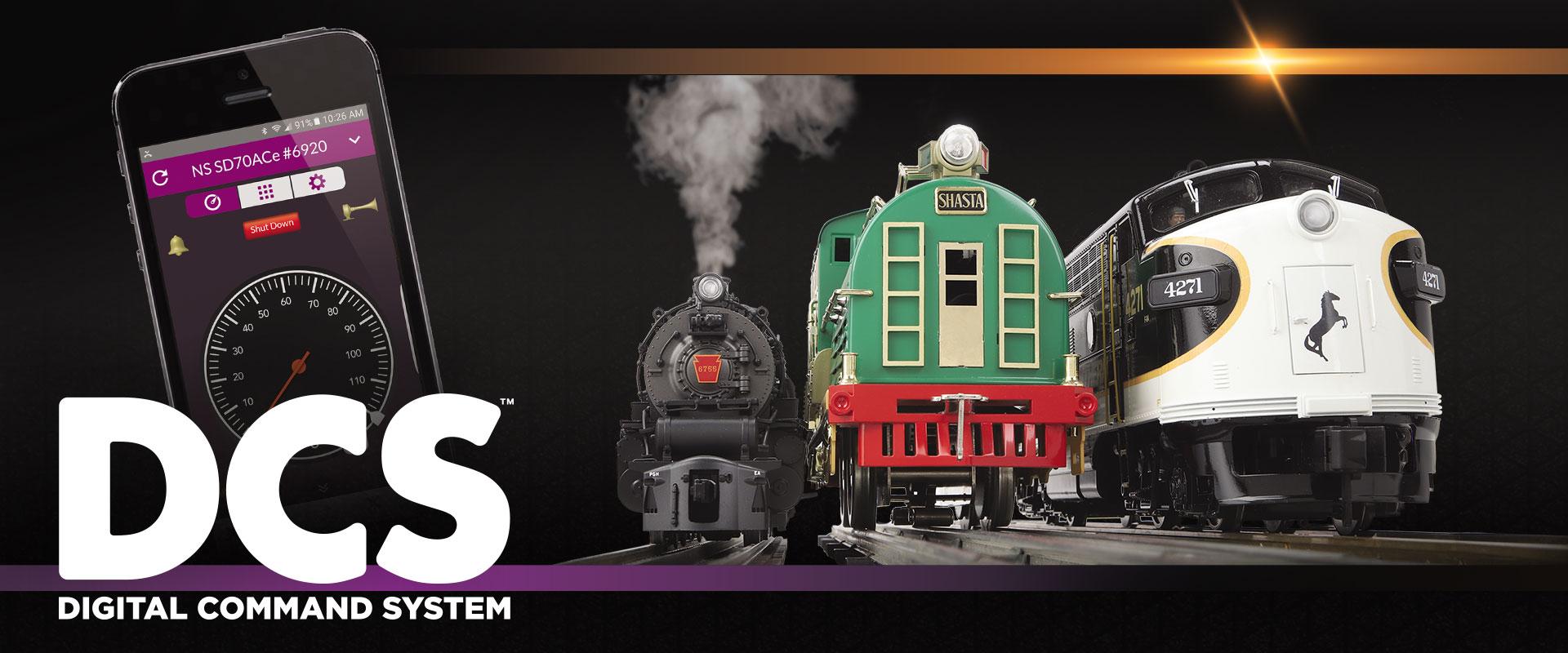
How do you set up an MTH DCS (Digital Command System) layout? For anyone who owns MTH Premier or RailKing locomotives with ProtoSound 3.0, DCS is the command control platform that unlocks all the advanced features — precise speed control, deep sound library, coupler operation, station announcements, and every other feature MTH built into their premium locomotives. Setting up DCS correctly is the difference between running MTH locomotives at their full potential versus operating them like basic transformer-controlled trains.
This complete 2026 guide walks through every step of setting up MTH DCS: what components you need, physical wiring, initial locomotive programming, remote configuration, WIU (Wireless Interface Unit) setup for smartphone control, and troubleshooting the most common DCS installation problems. By the end you'll have a working DCS layout with your first MTH locomotive operating under full command control.
What DCS Actually Is
Before installing anything, understand what DCS does:
Digital command signal on the rails. DCS sends digital commands from your controller through the Track Interface Unit to the outer rails of your track. MTH-equipped locomotives receive those commands and respond only to the ones addressed to their specific locomotive ID.
Independent locomotive control. Multiple MTH locomotives on the same track can operate independently. Locomotive A holds speed while Locomotive B accelerates from stop, all under separate command control.
ProtoSound 3.0 integration. DCS unlocks the full ProtoSound 3.0 audio library on MTH locomotives — station announcements, prime mover load-up, coupler slack sounds, air compressor cycling, and dozens of other prototype-accurate audio effects.
Coupler and feature control. DCS controls the ProtoCoupler mechanism (remote uncoupling), smoke output, momentum, cruise control, and other MTH-specific features.
What You Need for DCS Setup
A working DCS installation requires four components:
1. TIU (Track Interface Unit)
The heart of the MTH DCS system. The TIU is a rectangular black box that sits between your transformer and your track. Your transformer's output goes into the TIU; the TIU's output goes out to the track. Inside, the TIU takes raw AC power and layers digital DCS commands onto it before sending it down the rails.
A single TIU has 4 channels (labeled Fixed 1, Fixed 2, Variable 1, Variable 2). Most home layouts use one or two channels. Retail: $299-$399.
2. DCS Remote
The physical handheld controller. It talks wirelessly to the TIU using its own radio frequency (not Wi-Fi, not Bluetooth). The DCS Remote has an LCD screen and a big red control wheel — very tactile and easy to grab during operating sessions. Retail: $199-$249.
Alternative: the simpler DCS Explorer remote at a lower price point, though with fewer advanced features. $99-$149.
3. WIU (Wireless Interface Unit)
Optional but recommended for modern operation. The WIU plugs into the TIU and connects to your home Wi-Fi. Once configured, you can download the MTH DCS app on your smartphone or tablet and drive trains from there — same control features as the physical DCS Remote, but on a device you already own. Retail: $149-$199.
4. Regulated Power Supply
DCS works with most modern regulated power supplies. Options: MTH Z-4000 (400W) — designed for DCS use with dual throttles. Lionel PowerMaster 180 — works fine with DCS installations. MTH Z-1000 (100W) — for smaller layouts.
Physical Wiring Sequence
Connect components in this order:
Step 1: Transformer output to TIU input. Two wires from transformer to Fixed 1 or Variable 1 input on the TIU.
Step 2: TIU output to track. Two wires from Fixed 1 or Variable 1 output to your standard track terminal or lockon. Center rail (power) and outer rails (return).
Step 3: DCS Remote — the DCS Remote is wireless. Simply turn it on and it will automatically pair with the TIU on power-up.
Step 4 (if using WIU): WIU to TIU via included cable. Then WIU to your home Wi-Fi network.
Step 5: Verify visual confirmation: TIU has power LEDs indicating each channel is active.
Initial Locomotive Programming
Every new MTH DCS-equipped locomotive needs to be added to the DCS system before you can control it. This is a one-time setup per locomotive.
Adding a Locomotive:
Step 1: Place the locomotive on the track. It's easier if this is the only locomotive on the track during initial programming.
Step 2: Apply power. Locomotive should respond with power-on chuff sounds or engine start sequence.
Step 3: On DCS Remote, press MENU. Select "Add Engine" (or "Add Loco" on some remote versions).
Step 4: The DCS Remote will search for new locomotives. When it finds yours, it will display the locomotive information (model, road name, road number).
Step 5: Confirm the locomotive add. It will be assigned a numerical ID (typically 1-99).
Step 6: The DCS Remote will now display the locomotive as available for control.
Repeat this procedure for each additional MTH DCS locomotive. Each gets its own unique ID.
WIU Wi-Fi Setup (For Smartphone Control)
If you're using the WIU for phone/tablet control:
Step 1: Power on the WIU. It will broadcast its own Wi-Fi network initially.
Step 2: On your phone or tablet, connect to the WIU's Wi-Fi network (SSID typically visible as "MTH DCS" or similar).
Step 3: Open the MTH DCS app. It will detect the WIU.
Step 4: Configure the WIU to connect to your home Wi-Fi network through the app's setup wizard.
Step 5: Once configured, the WIU joins your home network. Your phone/tablet can control DCS from anywhere on your home Wi-Fi.
Common DCS Configuration Options
Once locomotives are added, you can configure per-locomotive settings:
Volume: Adjust locomotive audio volume from 0-100%.
Momentum: Programmable acceleration and deceleration rates.
Speed table: Custom speed curves for matched multi-locomotive operation.
Sound settings: Enable/disable specific sound features.
Smoke intensity: Regulate smoke output level.
Coupler operation: Configure ProtoCoupler remote uncoupling.
Custom feature assignments: Assign specific sound triggers to specific remote buttons.
Testing Your DCS Setup
Test 1: Basic movement
Select your locomotive on the DCS Remote. Turn the control wheel slowly. Locomotive should start moving with prototype-appropriate acceleration.
Test 2: Speed control
Turn the wheel further. Watch for smooth acceleration through the speed range. Sound should change appropriately (notch changes on diesels, chuff variations on steam).
Test 3: Sound features
Press horn/whistle button. Locomotive should respond with authentic audio. Press bell button — bell should ring. Test various sound triggers via the DCS Remote's function buttons.
Test 4: ProtoCoupler operation
Position locomotive next to a car. Press coupler button. Front or rear ProtoCoupler should activate (open then close).
Common Setup Problems and Fixes
Problem: DCS Remote can't find the TIU
Diagnostic steps: Verify TIU has power. Check that TIU LEDs are active on the channel you're connected to. Verify DCS Remote batteries are charged. Move DCS Remote closer to TIU during pairing.
Problem: Locomotive doesn't respond to any commands
Diagnostic steps: Verify track power. Clean track and locomotive wheels — DCS signal requires clean rail contact. Verify locomotive ID matches remote selection. Try Add Engine procedure again.
Problem: WIU won't connect to home Wi-Fi
Diagnostic steps: Verify Wi-Fi password entry. WIU only supports 2.4 GHz Wi-Fi networks — verify your router broadcasts 2.4 GHz. Restart WIU by unplugging for 10 seconds.
Problem: Sound cuts out on some track sections
Diagnostic steps: DCS signal requires clean rail contact. Clean track thoroughly. Check for insulated rail joiners that shouldn't be there. Ensure all track sections are properly seated.
Problem: Multiple locomotives respond to same commands
Diagnostic steps: Multiple locomotives programmed with same ID. Delete duplicate IDs and re-add locomotives with unique IDs.
Advanced DCS Setup: Multiple TIU Configurations
Larger layouts benefit from multiple TIUs supporting different power districts. Benefits:
Fault isolation: Short circuit in one district doesn't kill the whole layout.
Signal reliability: DCS signal integrity improves across shorter runs.
Independent operator control: Different operators can run different districts.
DCS + LEGACY Coexistence
DCS and Lionel LEGACY can coexist on the same layout. The MTH TIU has a passthrough mode that allows Lionel LEGACY command signals to pass through undisturbed. Wiring order: transformer → TIU (in passthrough) → LEGACY Base → track. Each brand's locomotives respond to their own remote/app.
Frequently Asked Questions
How long does DCS setup take?
Physical setup: 30-45 minutes. First locomotive add: 5-10 minutes. Each additional locomotive: 3-5 minutes. Complete setup for a layout with 5 locomotives: approximately 60-90 minutes.
Do I need the WIU or is the DCS Remote enough?
DCS Remote alone works fully. WIU is optional if you want smartphone/tablet control. Many operators use both — Remote for detailed operation, phone for casual browsing.
Can I use DCS with non-MTH locomotives?
No. DCS controls MTH ProtoSound 2.0 and 3.0-equipped locomotives specifically. Other brands' command systems (Lionel LEGACY, DCC) require their own control platforms. However, all systems can share the same track.
Is MTH DCS still supported since MTH ceased production?
Yes. MTH continues to support existing DCS equipment through parts, service, and app updates. The DCS ecosystem remains functional even though new MTH locomotive production has ceased.
Can DCS locomotives run without DCS command?
Yes. DCS-equipped locomotives fall back to conventional AC operation on standard transformers. Basic sound and movement work but the depth of DCS features is lost.
Verdict
DCS setup takes some initial investment in hardware and about an hour to configure, but delivers command control features that transform MTH operation. TIU, DCS Remote, optional WIU, and regulated power supply are the complete list. Add each locomotive once, and you have a layout where multiple MTH locomotives operate independently under full DCS control with the deep ProtoSound 3.0 audio library. Well worth the investment for anyone who owns significant MTH inventory. For related control system guidance, see our Lionel LEGACY setup guide, our Lionel vs MTH comparison, and our buying guide.
Newsletter
Weekly O-gauge tips & reviews
New reviews, layout ideas, and hobby news — straight to your inbox.